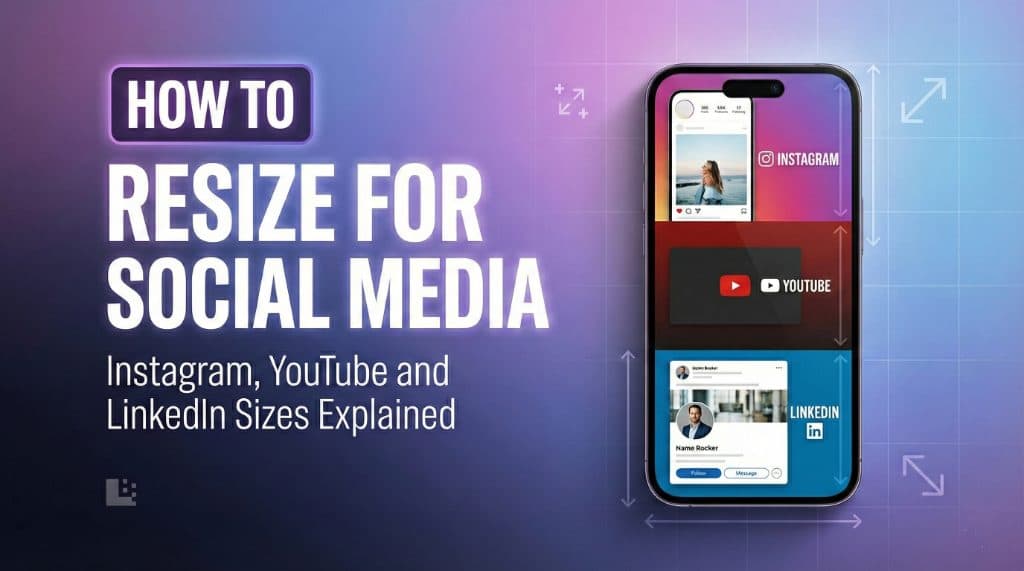
How to Resize Images for Instagram, YouTube and LinkedIn
Have you ever uploaded a carefully crafted photo to your social media profile only to find it awkwardly cropped or completely blurry? You are definitely not alone. Every platform has its own hidden rules about aspect ratios and pixel dimensions that can easily ruin a great piece of content. Getting these numbers right is the absolute secret to looking professional online.
When your visuals perfectly fit the frame, you capture more attention and drive better engagement. Let us explore exactly how to nail the dimensions for three of the biggest platforms on the internet today.
Why Image Dimensions Matter on Social Media
We scroll through thousands of posts every single day. The visuals that truly make us stop and read are the ones that command screen space perfectly. If you upload a horizontal photo to a platform built for vertical scrolling, your content takes up barely any room on the screen. Users simply glide past it without a second thought.
On top of that, social networks actively compress files that do not meet their exact guidelines. This heavy compression destroys the clarity of your photography. By understanding the optimal dimensions, you take back control of your brand presentation and your entire visual experience.
The Perfect YouTube Thumbnail Size
Your video might be a creative masterpiece, but absolutely nobody will click on it if the cover photo looks messy. The ideal youtube thumbnail size is exactly 1280 by 720 pixels. This dimension gives you a perfectly clear widescreen aspect ratio of 16 by 9.
You want to design these covers so the text and faces are incredibly large and legible even on a tiny mobile phone screen. Remember to keep important elements far away from the bottom right corner, as the platform automatically places the video timestamp exactly there. If you want your text to truly pop out and grab maximum attention, you can reliably use an internal tool to add text behind the subject for a completely professional magazine cover aesthetic.
How to Resize Image for Instagram
Instagram offers three different formats, but if you want to maximize your organic reach, vertical content is always the correct answer. When you resize image for instagram, you should always aim for the portrait size of 1080 by 1350 pixels. This aspect ratio of 4 by 5 takes up the absolute maximum amount of vertical space on any mobile device.
If you prefer the classic uniform grid look, the standard square size is a solid 1080 by 1080 pixels. Make sure your main subject is centered perfectly in the shot. If your original photo is excessively wide, the app automatically crops the sides out. You can also experiment with a fun pop out collage layout to make your standard square posts feel incredibly dynamic and engaging.
Understanding LinkedIn Post Image Size
Professional networking sites require a noticeably different approach. The optimal linkedin post image size heavily depends on exactly what you are sharing with your connections. For a standard photograph attached directly to a text update, an even square framing of 1080 by 1080 pixels works wonderfully. However, if you are explicitly sharing an article link alongside a large preview cover, you absolutely need a wide landscape dimension of 1200 by 627 pixels.
Keeping your professional graphics incredibly sharp shows unmatched attention to detail. Blurry text or awkwardly cropped logos immediately signal a glaring lack of effort.
How to Use the ImageRobo Resize Tool
You do not need complicated desktop software to fix your graphic dimensions anymore. You can quickly leverage our extremely fast online picture resizer to get the perfect fit in seconds.
Step 1: Open the ImageRobo resize workspace directly on your mobile or desktop internet browser.
Step 2: Drag and drop your original uncropped photo straight into the secure upload zone.
Step 3: Explicitly choose your intended social destination from the preset list or manually type your required width and height.
Step 4: Move and adjust the transparent crop box smoothly to perfectly frame your main visual subject.
Step 5: Click the bold resize button and securely save the perfectly formatted picture safely to your hard drive.
Frequently Asked Questions
Will resizing my photo reduce the overall graphic sharpness?
Not if you use the right tools. Scaling an asset down usually retains all the original sharpness. However, if you aggressively try to stretch a tiny photo into a massive banner, it will undoubtedly become pixelated. Always strategically start with the highest resolution possible.
Can I effectively remove the background before I change the size?
Absolutely. You can effortlessly remove image background online entirely first, securely save the transparent file, and then confidently adjust its dimensions to perfectly fit your shiny new layout.
Why do my photos continually look blurry after setting the right size?
Sometimes the platform artificially compresses your file strictly because the data size is much too large. You can swiftly fix this by utilizing an online picture compressor to carefully reduce the overall file weight without shrinking the visual dimensions.
Start Upgrading Your Feed Today
Stop letting bad cropping ruin your tough work. By closely following these specific dimensional guidelines, your content will continually look beautifully sharp, exceptionally professional, and forever ready to capture the deep attention of your growing audience. Head over to our dedicated resizer tool right now and give your visuals the pristine upgrade they heavily deserve.