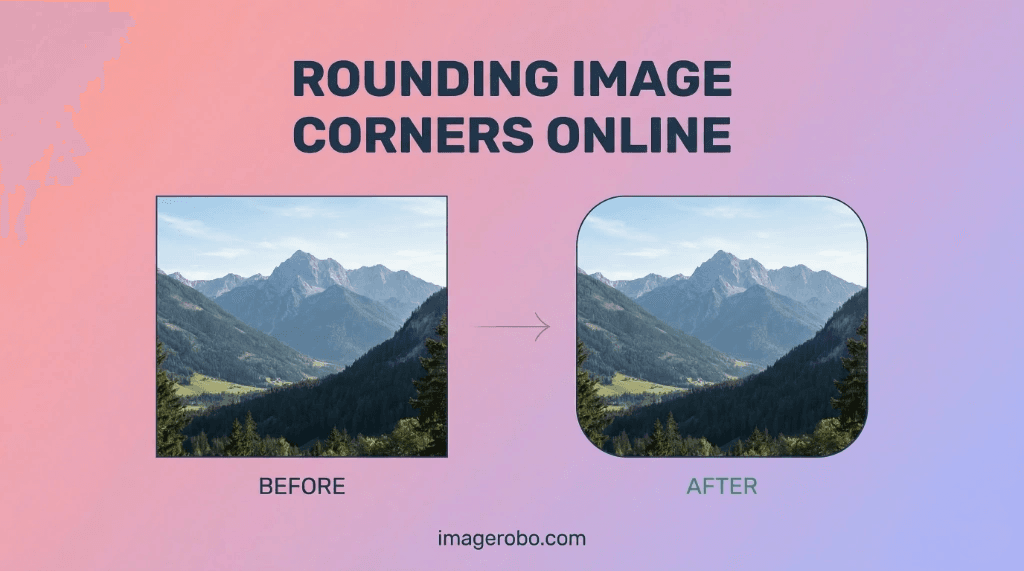
From modern app interfaces to professional LinkedIn profiles, rounded images have become the gold standard of digital design. Sharp, rigid photograph corners often feel outdated or aggressive, whereas smooth, rounded aesthetics draw the eye inward and naturally align with contemporary UI (User Interface) principles.
But what if you don't own expensive photo editing software like Adobe Photoshop? Or what if you're on a mobile device and just want to soften the edges of an image quickly without downloading another app?
In this complete guide, you'll learn exactly why rounded imagery is critical for 2026 aesthetics, how to choose the right file formats for the job, and the absolute easiest way to round image corners online for free.
Why Should You Round Your Image Corners?
Before jumping into how, it’s worth understanding why rounded corners are dominating modern web design.
1. Psychological Comfort
Research into visual psychology shows that human brains naturally prefer curved, smooth designs over sharp angles. Sharp edges subconsciously signal danger or harshness, while rounded corners convey approachability, safety, and modern elegance. This is exactly why leading brands like Apple and Google default to rounded UI elements across all their operating systems.
2. Focus on the Subject
A sharp 90-degree corner draws the viewer's eye outward towards the edges of the frame. Rounding or completely circling the image pushes the viewer's focus straight to the center of the photo—making it the ideal choice for portrait profile pictures and team pages.
3. Sleek App Integration
If you are a developer, designer, or marketer rendering images inside cards, dashboards, or presentations, rounded corners sit significantly better inside padded containers, helping the imagery feel like a cohesive part of the composition rather than a glued-on afterthought.
The Secret to Perfect Edges: Understanding Transparency
One of the biggest mistakes people make when trying to round an image is saving it in the wrong file format.
If you take a square photograph, cut out the corners to make them round, and then save the resulting file as a standard JPEG, those empty corners won’t disappear. Because JPEG does not support transparency, the software will automatically fill those empty curved corners with solid white (or black) pixels. If you place that image on a dark gray website background, ugly white squares will appear in the corners, completely ruining the effect!
The PNG Solution
To maintain sleek, truly transparent rounded corners, you must save your final image as a PNG (Portable Network Graphics) or a modern format like WEBP. These formats support an "Alpha Channel"—meaning they can register transparent pixels.
When utilizing tools to round your corners, ensure the app specifically exports real transparency so the image beautifully overlays on top of any background color.
How to Round Image Corners Online (No Photoshop Required)
If you need to round an image's corners quickly, securely, and completely free, you can use ImageRobo's Round Corners on Image tool.
Unlike older web tools that force you to upload your precise photos to a mysterious third-party server, ImageRobo’s tool is built entirely on modern browser technologies. Everything happens right on your device memory, meaning it's 100% private, instantly fast, and requires zero account sign-ups.
Quick 3-Step Guide
1. Upload Image
Go to the Round Corners Tool and drop your JPEG, PNG, WEBP or HEIC/HEIF image.2. Adjust Radius
Drag the bottom slider to instantly set your desired corner curve.3. Download PNG
Click Download at the top to save your crisp, transparent image without losing quality.
Best Practices for Social Media and UI Design
Depending on where you intend to use your newly rounded image, different radiuses provide different psychological impacts.
-
Profile Pictures (Circles): If you are uploading to LinkedIn, Twitter, Instagram, or a team "About Us" page, you'll want to push the radius slider to its absolute maximum. This converts square images into perfect circles, eliminating distracting backgrounds entirely.
-
UI Thumbnails (4px to 12px): For blog post featured images, e-commerce product grids, or dashboard thumbnails, a subtle curve (around 8px) looks highly professional. It's enough to remove the harshness without noticeably altering the composition of the photograph.
-
Presentation Cards (16px to 24px): For dominant hero images on websites or PowerPoint slide graphics, a larger, more pronounced radius creates a playful, friendly, app-like visual that looks fantastic on modern screens.
Conclusion
You shouldn't need a degree in graphic design or an expensive monthly subscription to make your photos look modern. By leveraging fast, browser-based native tools like ImageRobo, you can perfectly round image corners online for free, preserving true lossless dimensions and authentic PNG transparency in seconds.
Ready to soften your sharp edges? Head over to the Round Corners Tool and start transforming your photos today!