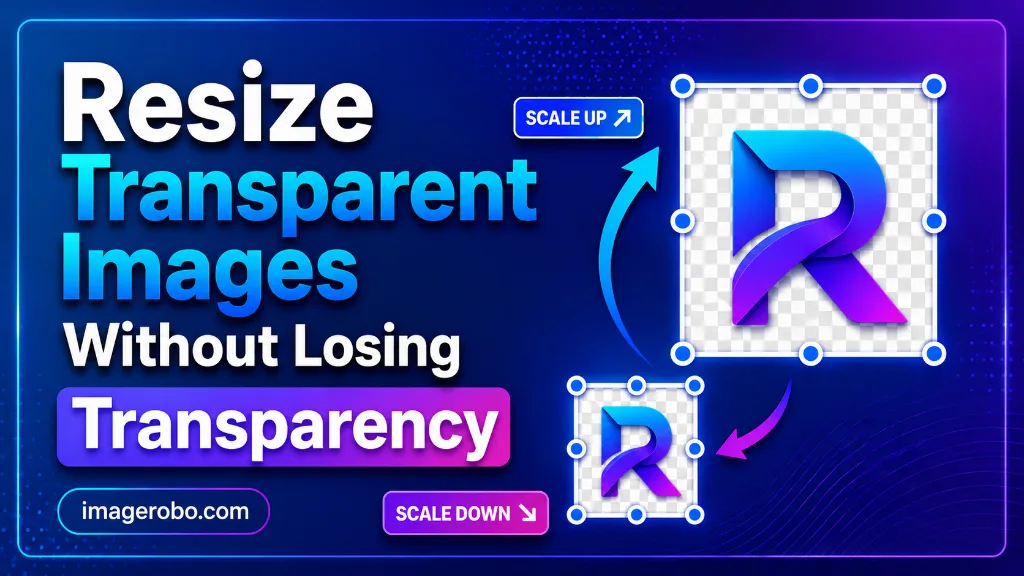
How to Resize Transparent Images Without Losing Transparency
If you have ever resized a transparent image and suddenly ended up with a white or black background, you are not alone.
This commonly happens while resizing:
- PNG logos
- Stickers
- Product cutouts
- Transparent icons
- Social media graphics
- Website assets
The good news is that you can resize a transparent image without losing transparency if you use the correct method.
This guide explains exactly how.
Quick Answer
To resize a transparent image without losing transparency:
- Use a PNG-compatible image resizer
- Keep the original format as PNG or WebP
- Avoid converting to JPG
- Maintain aspect ratio while resizing
- Export while preserving transparency
Why Transparency Gets Lost
Most users accidentally lose transparency because they save the image in the wrong format.
JPG does not support transparency
When a transparent PNG gets converted to JPG:
- Transparent areas become white
- Background may turn black
- Edges can become blurry
- Quality may decrease
Formats that support transparency:
Supported:
- PNG
- WebP
- SVG
- GIF
Not supported:
- JPG
- JPEG
Best Ways to Resize Transparent Images
Keep PNG Format
PNG remains one of the safest choices for transparent images.
Best for:
- Logos
- Icons
- UI elements
- Product images
- Graphics with text
Use WebP for Smaller File Size
If you need smaller files while preserving transparency, WebP is an excellent choice.
Benefits:
- Smaller than PNG
- Supports transparency
- Faster website loading
- Better for SEO performance
Resize Transparent Images Using ImageRobo
You can resize transparent images directly in your browser without uploading files to external servers.
Follow The Steps
-
Open Image Resizer
https://imagerobo.com/resize It is free privacy-focused tool that doesn't store your images on server. -
Select Your Image
Select your transparent PNG or image file. -
Set Dimensions
Adjust width, height, or scale percentage while keeping aspect ratio if needed. Everything happens in your browser without uploading them onto server. -
Download Instantly
Save your resized image with transparency preserved.
Need Smaller File Size Too?
Transparent PNG files can sometimes become large.
After resizing, you can further optimize them using:
https://imagerobo.com/compress
Benefits:
- Reduce image size
- Faster website loading
- Better Core Web Vitals
- Improved SEO performance
- Maintain visual quality
Best Practices for Resizing Transparent Images
Follow these recommendations:
Do
- Keep PNG or WebP format
- Maintain aspect ratio
- Resize close to actual display dimensions
- Compress afterward if needed
Avoid
- Saving transparent files as JPG
- Enlarging tiny images too much
- Compressing aggressively
- Using random screenshot tools
Frequently Asked Questions
Can I resize PNG without losing transparency?
Yes. PNG fully supports transparency and keeps transparent backgrounds during resizing.
Why does my transparent image become white?
This usually happens because the image was exported as JPG instead of PNG or WebP.
Does WebP support transparency?
Yes. WebP supports transparent backgrounds while producing smaller file sizes than PNG.
Can I resize transparent logos?
Absolutely. Transparent logos are commonly resized for websites, social media, and branding assets.
Final Thoughts
Transparent images are widely used for logos, branding, product images, and content creation.
To resize transparent images without losing transparency:
- Keep PNG or WebP format
- Use a proper image resizer
- Compress afterward for better performance
Resize your transparent images:
Image Resizer
https://imagerobo.com/resize
Optimize file size afterward:
Image Compressor
https://imagerobo.com/compress
Your transparency stays intact and your images remain fast and optimized.