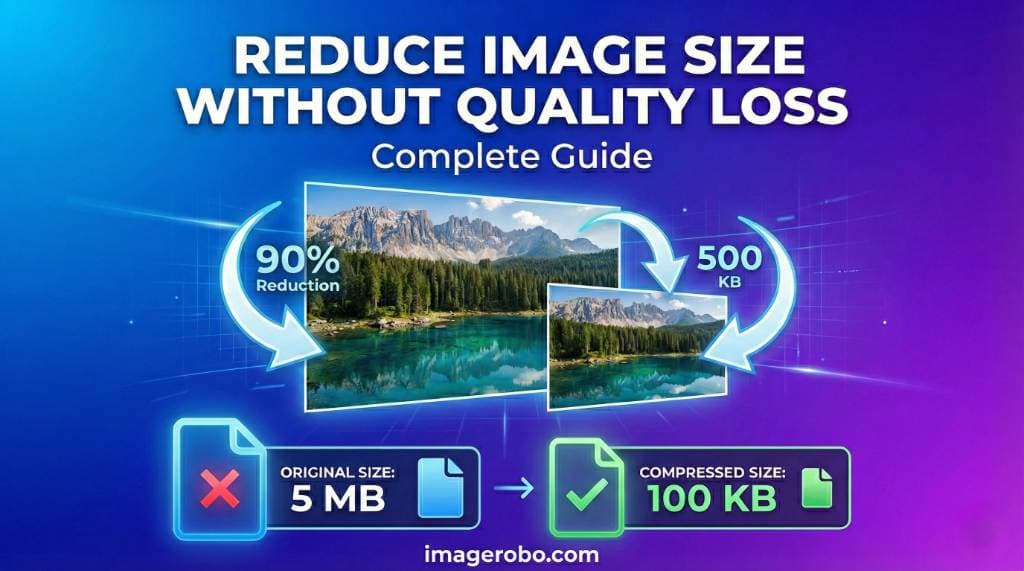
How to Reduce Image Size Without Losing Quality (Complete Guide)
If you manage a website, run an online store, or create digital content, you have probably faced this problem:
You capture a beautiful high resolution photo… and the file size is huge.
When you try to upload it:
- Your CMS rejects it
- Your email refuses to attach it
- Your website slows down
- Your PageSpeed score drops
You want to reduce image size, but you do not want blurry or pixelated results.
The good news? You absolutely can compress image without losing quality — if you do it correctly.
This guide will show you how.
Why Large Images Hurt Your Website
Modern smartphones and cameras capture extremely detailed images. That is great for printing posters, but terrible for websites.
Large image files can:
- Slow down page loading speed
- Hurt Core Web Vitals
- Increase bounce rate
- Reduce SEO rankings
- Consume hosting storage
- Waste user mobile data
Page speed is a ranking factor. If your images are heavy, your rankings suffer.
Learning how to reduce image size properly solves both performance and storage issues.
How Image Compression Actually Works
Let’s simplify it.
Every image is made of thousands or millions of tiny colored pixels. In uncompressed files, each pixel’s information is stored individually.
Smart compression tools detect patterns.
For example:
- A blue sky area contains similar shades
- A white background has repeated color values
Instead of storing each pixel separately, the compressor stores the pattern more efficiently.
This reduces file size while keeping the image visually identical.
There are two types of compression:
1. Lossless Compression
- No visible quality loss
- Removes unnecessary metadata
- Preserves original clarity
- Best for logos, graphics, and professional images
2. Lossy Compression
- Reduces file size more aggressively
- Slight quality reduction
- Can cause blur or artifacts if overused
For most websites, controlled compression gives the perfect balance.
Why Built-In Tools Often Ruin Quality
Many people use basic desktop tools and simply lower the quality percentage manually.
That often leads to:
- Blurry text
- Jagged edges
- Compression artifacts
- Washed-out colors
Those tools do not intelligently optimize the image.
If you want professional results, you need a smart browser-based compressor designed specifically for web optimization.
The Best Way to Reduce Image Size Without Losing Quality
You can safely compress images directly in your browser using the
👉 Best Image Compressor Online
This tool allows you to:
- Compress image without losing quality
- Reduce image size to specific KB limits
- Optimize images for websites
- Maintain sharp details
- Avoid server uploads
How to Use It
Step 1: Open the compressor page
Step 2: Drag and drop your image
Step 3: Adjust compression level if needed
Step 4: Preview the result instantly
Step 5: Download the optimized image
The process takes only seconds.
Resize Before You Compress
Another common mistake is uploading oversized dimensions.
If your blog layout only displays images at 1200px width, uploading a 4000px wide image is unnecessary.
Resize it first.
You can use the
👉 Online Image Resizer
It allows you to:
- Resize image in pixels
- Maintain aspect ratio
- Prepare images for social media
- Reduce unnecessary data load
Proper dimensions + smart compression = best results.
Convert to WebP for Better Performance
In 2026, WebP remains one of the best formats for web performance.
Why?
- Smaller file size than JPG or PNG
- High visual quality
- Better compression efficiency
- Wide browser support
You can easily convert formats using the
👉 Image Converter Tool
Switching to WebP alone can reduce file size by 25 to 40 percent in many cases.
Additional Optimization Tips
To get maximum performance and SEO benefit:
- Use descriptive file names (example: modern-office-chair.jpg)
- Add proper alt text
- Avoid uploading raw camera files
- Compress before publishing
- Use responsive image sizes
These small improvements create a huge difference over time.
Frequently Asked Questions
How much can I reduce image size?
In many cases, you can reduce image size by 50 to 80 percent without visible quality loss using proper compression.
Is it possible to compress image without losing quality completely?
Yes, with lossless or smart compression tools, visual quality remains nearly identical while file size decreases significantly.
What is the ideal image size for websites?
Most blog images perform well between 100KB and 300KB depending on resolution and format.
Should I compress before or after uploading?
Always compress before uploading to avoid unnecessary bandwidth usage.
Final Thoughts
Reducing image size is not about destroying quality.
It is about removing unnecessary data.
When done properly, you get:
- Faster websites
- Better SEO rankings
- Improved user experience
- Lower hosting costs
- Higher engagement
If you regularly publish images online, compression should be part of your workflow.
Start optimizing your images today using the right tools, and your website performance will improve almost immediately.